Setup Automated Cross-Selling for Shopware 6 with SyncSpider
SyncSpider’s Shopware 6 integration now enables you to automate and enhance cross-selling functionality for your products by setting up cross-sell groups.
This cross-selling feature allows Shopware 6 users to define related products, creating personalized product recommendations that enhance the customer shopping experience.
In this guide, you'll learn how to configure cross-sell groups in SyncSpider, map relevant fields, and sync them to your Shopware 6 store, making it easier to manage and showcase complementary products to your customers.
TABLE OF CONTENTS
- Steps to Configure Cross-Sell Groups
- Step 1: Start a New Task in SyncSpider
- Step 2: Select Cross-Selling Behaviour during Target Configuration
- Step 3: Mapping the Cross-Sell Section
- Step 4: Run the Task to Sync Cross-Sell Group Data
- Additional Resources
Steps to Configure Cross-Sell Groups
Step 1: Start a New Task in SyncSpider
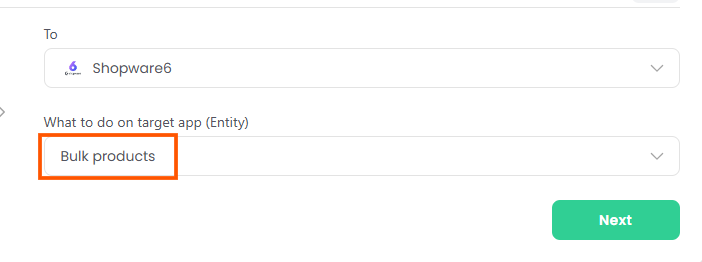
Begin by starting a new task in SyncSpider. Select Shopware 6 as your Target Integration and choose Bulk Products as the entity you want to send.
Step 2: Select Cross-Selling Behaviour during Target Configuration
In the Target Configuration step of setting up the task, you will find the cross-selling feature under the option labeled **'**Select cross sell behaviour.'
This allows you to define how SyncSpider handles cross-sell groups when exporting products to Shopware 6.

Within this dropdown, you have two options:
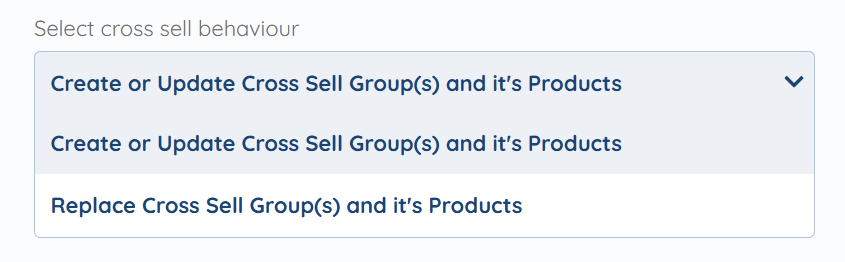
Create or Update Cross Sell Group(s) and its Products:
Selecting this option will create new cross-sell groups if they don’t already exist in Shopware 6. If the groups do exist, SyncSpider will update them with any new or modified products.
Replace Cross Sell Group(s) and its Products:
Choosing this option will overwrite any existing cross-sell groups in Shopware 6 with the new data provided from SyncSpider.
Select the cross-sell behavior that best suits your integration needs, and proceed with the rest of your task configuration.
Step 3: Mapping the Cross-Sell Section
In the Mapping step of your task configuration, you’ll see a dedicated section for Cross Sell.
This section allows you to map fields that define cross-sell groups, which are used to display related products in Shopware 6.

Here are the main fields within the Cross Sell section:
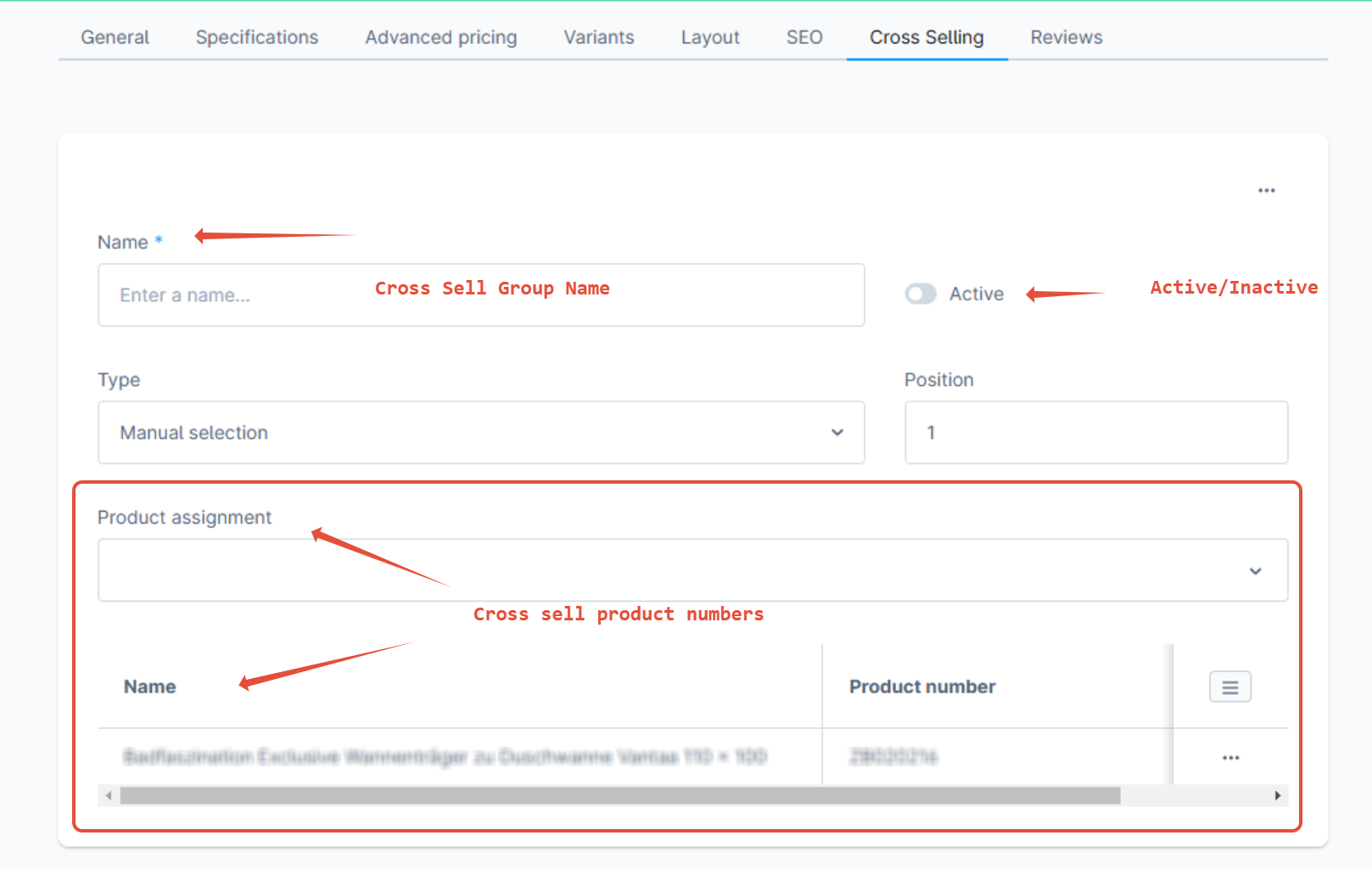
Cross Sell Group Name: Use this field to assign a name to the cross-sell group as it will appear in your Shopware store.
Active: Map this field to indicate whether the cross-sell group is active or inactive. This will enable or disable the cross-sell group within Shopware 6.
Cross Sell Product Numbers: Specifies the product numbers that belong to the cross-sell group. These products will appear as recommended items alongside the primary product.
Step 4: Run the Task to Sync Cross-Sell Group Data
After mapping these fields in SyncSpider, proceed to run the task and the cross-sell group data will update the Cross Selling tab for the respective products in Shopware 6.
Additional Resources
Learn more about SyncSpider's capabilities and how to optimize your Shopware 6 integration with these additional resources:
- How to Integrate Shopware 6
- How to Configure Tax Preferences for Shopware 6 Orders
- How to create a Task?
- What is an Entity?
Shopware 6 is just one of the tools we support!
To check the list of the tools and features we support please click here!
If you don't see your favorite tool on our list, please take the time and send us the request here to create an integration for you or UP-vote if it's already on the list
We develop integrations based on the requests and up-votes
We hope that this covers everything. If you have any further questions or need additional clarification please reach out to us via [email protected] or our chat widget!
Updated on: 22/09/2026
Thank you!