FluentCRM
TABLE OF CONTENTS
- 1) Description-Description%C2%A0)
- 2) Setup-Setup%C2%A0)
- Step 1: Go to Integrations
- Step 2: Search for and select Fluent CRM
- Step 3: Name Fluent CRM and give a Description (Optional)
- Step 4: Obtain the Base URL in Fluent CRM
- Step 5: Enter the Base URL and press Finish
- 3) FluentCRM as a Target-FluentCRM-as-a-Target)
- 3.1 Create Contact
- 4) Configuration-Configuration)
- 4.1 Use Field Manager
- 5) Mapping-Mapping)
1) Description
Use relevant data from the tools, marketplaces, platforms, and apps you use as sales channels by syncing them with FluentCRM through SyncSpider. Create efficient FluentCRM email marketing campaigns, and increase sales. Fully automate your business without complicated coding processes.
2) Setup
To Set up the FluentCRM integration please follow the steps below:
Step 1: Go to Integrations

Note: You can set up any integration within the Task itself, you do not need to set up the Integration beforehand.
Step 2: Search for and select Fluent CRM

Step 3: Name Fluent CRM and give a Description (Optional)

Step 4: Obtain the Base URL in Fluent CRM
To Obtain the Base URL, you will have to create an Incoming webhook.
To create a webhook in the FluentCRM, please follow the instructions given by FluentCRM on Creating an Incoming Webhook.
For the Base URL, paste the URL generated after creating the Webhook.
After you have obtained the URL simply paste it to SyncSpider and click finish.
The URL Should look something like this:

Step 5: Enter the Base URL and press Finish

3) FluentCRM as a Target
3.1 Create Contact

This allows you to create a contact in FluentCRM based on the information pulled from the selected Source.
4) Configuration
4.1 Use Field Manager
With the configuration of the Field Manager, you can define Custom Fields within FluentCRM to fit the exact field needs of your Contacts in FluentCRM.

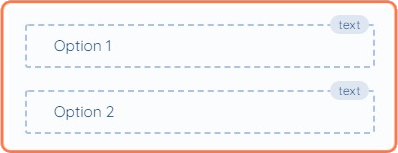
Any "Options" configured here will be displayed in the mapping screen and available to import into FluentCRM.
5) Mapping
The following mapping fields will be presented while setting up the task:
- = Required
email* | text |
|---|---|
prefix | text |
first_name | text |
last_name | text |
full_name | text |
timezone | text |
address_line_1 | text |
address_line_2 | text |
city | text |
state | text |
postal_code | text |
country | text |
ip | text |
phone | text |
source | text |
lists | number |
tags | number |
status | text |
Field Manager Fields | text |
We hope that this covers everything. If you have any further questions or need additional clarification, please reach out to us via [email protected] or our Chat Widget!
Updated on: 22/09/2026
Thank you!