How to Integrate Lob
TABLE OF CONTENTS
- 1) Description-Description)
- 2) Entities-Entities)
- 3) Steps-Steps)
- Step 1: Select the Lob Integration
- Step 2: Enter the Integration Name
- Step 3: Generate an API Key
- Step 4: Enter the API Key and Password
1) Description
Lob is a platform that integrates with your CRM, marketing automation & customer data tools that automate the creation and delivery of relevant, personalized direct mail as a part of your campaigns.
With Lob you can send postcards, checks or letters the same way that you use digital tactics. You can trigger direct mail engagements based on customer behavior or milestones.
2) Entities
Source | Target |
|---|---|
Send Addresses | Add Address |
Send Postcards | Add Postcard |
Send Templates | Add Template |
Send Letters | Add Letter |
Send Checks | Add Check |
Send Bank Accounts | Add Bank Account |
Send Billing Groups | Add Billing Group |
Send Cards | Add Card |
3) Steps
Step 1: Select the Lob Integration
Either while Creating a Task or in the Integrations menu.
Enter the name of the integration in the search bar.

Step 2: Enter the Integration Name
Enter the Name of the Integration.
You can optionally also enter a description.

Step 3: Generate an API Key
To obtain the API Key please follow the steps below.
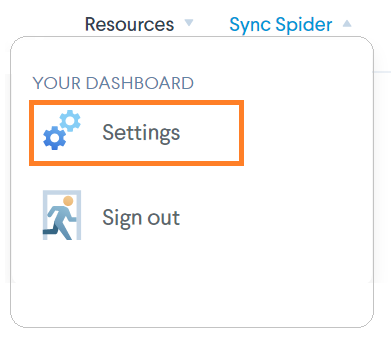
- Log into your Lob account, navigate to your Account, and press Settings from the dropdown menu.
- Navigate to the API Keys section:

Note: To make the API as explorable as possible, accounts have Test and Live environment API keys.
To switch between environments, use the appropriate key for that environment when performing a request. You can find each environment's API key in your dashboard under Settings.
Test API keys are always prefixed with test_ and production API keys with live_.
- Chose the API Key you would like to use for your Integration.

Secret API keys should be kept confidential and only stored on your own servers.
Your account's secret API key can perform any API request to Lob without restriction.
Publishable API keys are limited to US verifications, international verifications, and US autocomplete requests.
Step 4: Enter the API Key and Password
Simply copy the generated API Key and paste it into the Username field
In the Password field enter the same password as your Lob account.

Press Finish.
Congratulations! Lob is now successfully integrated.
We hope that this covers everything. If you have any further questions or need additional clarification, please contact us via [email protected] or our chat widget!
Updated on: 22/09/2026
Thank you!