How to Integrate WooCommerce - Help Center - SyncSpider
TABLE OF CONTENTS
- Description
- Entities
- Steps to Integrate WooCommerce with SyncSpider
- Step 1: Find the Integration
- Step 2. Name the Integration
- Step 3. Provide Credentials
- Step 4. Download and Install the SyncSpider WordPress Plugin
- Step 5. Generate Consumer Key and Secret in WooCommerce
- Step 6. Fill Out API Key Information
- Step 7. Connect WooCommerce to SyncSpider
- Additional Resources
Description
WooCommerce is a web-based, open-source eCommerce platform designed to help you create online stores with customizable themes, payment methods, and shipping options.
With SyncSpider, you can easily integrate WooCommerce to automate your product, order, and coupon management across multiple platforms.
Entities
Source | Target |
|---|---|
Product | Product |
Order | Order |
Coupon | Order Status |
Coupon |
Steps to Integrate WooCommerce with SyncSpider
Step 1: Find the Integration
Either while Creating a Task or in the Integrations menu click 'Connect new app'.
Enter the name of the integration in the search bar .

Step 2. Name the Integration
Enter the name of the integration.

Click 'Next' to proceed.
Step 3. Provide Credentials
You’ll be prompted to enter your Shop URL, Consumer Key, and Consumer Secret.
These credentials are required to authenticate your WooCommerce store.

Step 4. Download and Install the SyncSpider WordPress Plugin
Download the SyncSpider WordPress plugin here .
Now install the WordPress SyncSpider plugin by going to "Plugins" -> "Add New".

Click on "Upload Plugin".

Then simply drag and drop your Installed SyncSpider plug-in in Zip format.

After you have installed it simply activate it in "Installed Plugins" section .

Step 5. Generate Consumer Key and Secret in WooCommerce
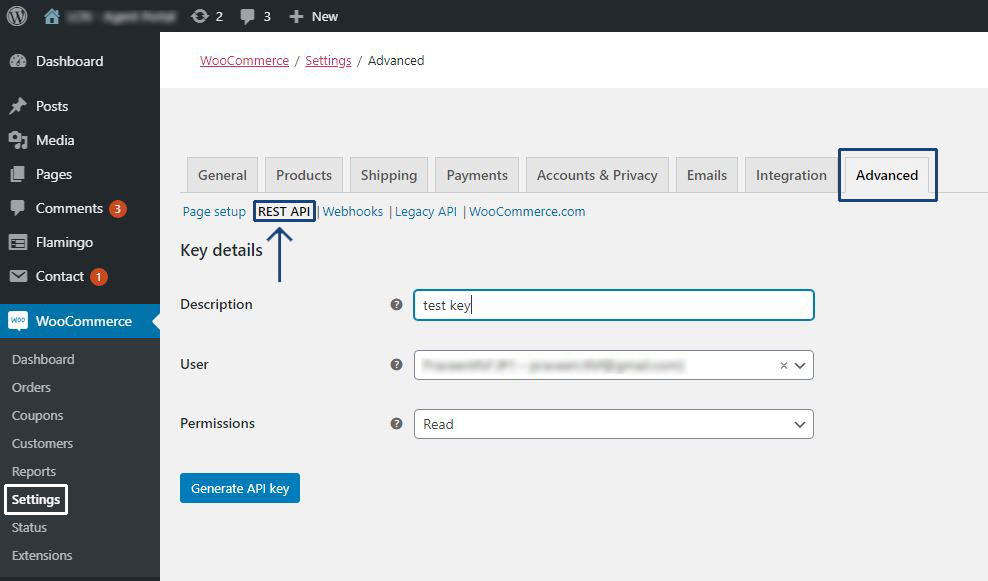
To generate the Consumer Key and Consumer Secret, log in to your WooCommerce account and choose your WooCommerce plug-in.
Click on "Settings" -> "Advanced" -> "REST API" .
Step 6. Fill Out API Key Information
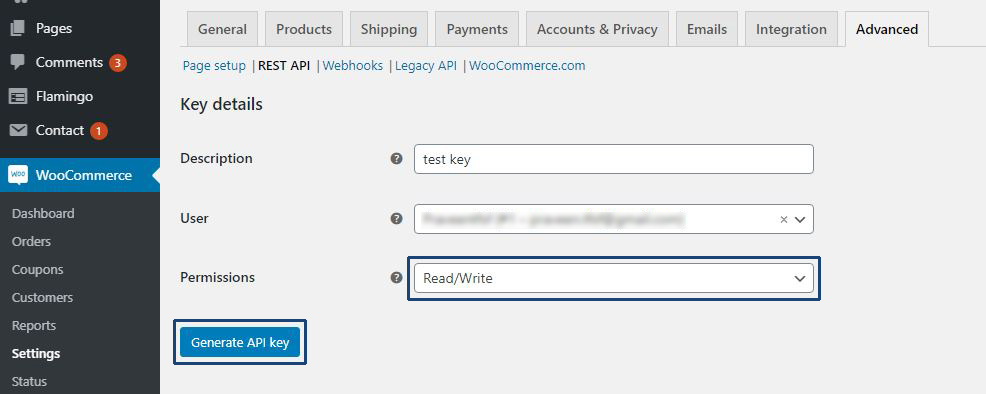
In the WooCommerce API key generation page, fill in the fields:
- Description: Name the key.
- User: Select the user associated with this integration.
- Permissions: Set this to Read/Write.
Click 'Generate API Key'.
Step 7. Connect WooCommerce to SyncSpider
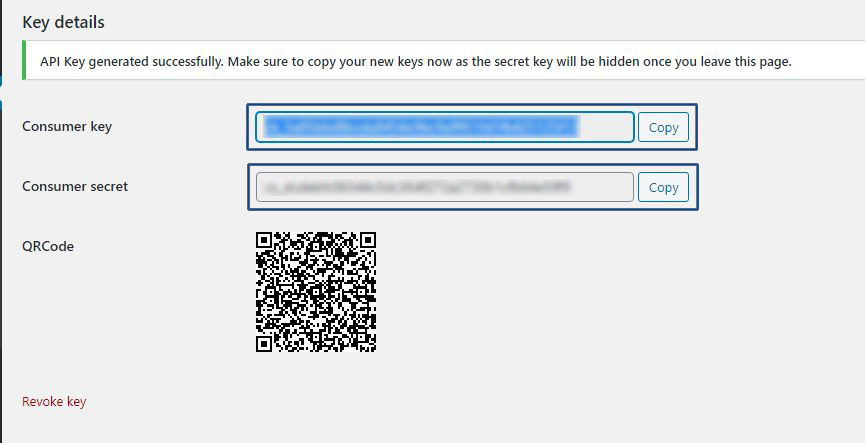
Copy the Consumer Key and Consumer Secret generated by WooCommerce.
Consumer Key and Secret generated in WooCommerce for SyncSpi
Return to your SyncSpider integration setup, and paste the keys into the corresponding fields.
Click 'Finish' to complete the setup.
Additional Resources
For additional information on Woocommerce check out these resources:
- How to use Variations in WooCommerce?
- WooCommerce to CSV Task Integration
- Send Product Data from WooCommerce to Ebay
- WooCommerce to Dokan Example
WooCommerce is just one of the tools we support!
To check the list of the tools and features we support, please click here.
If you don't see your favorite tool on our list, please take the time and send us a request here to create an integration for you OR Up-vote it if it's already on the list
We develop the integrations based on the requests and up-votes
We hope that this covers everything. If you have any further questions or need additional clarification please reach out to us via [email protected] or our Chat Widget!
Updated on: 22/09/2026
Thank you!