How to Integrate Lightspeed - Help Center - SyncSpider
TABLE OF CONTENTS
- Description
- Entities
- Steps to Integrate Lightspeed (E-Series)
- Step 1. Add Integration on SyncSpider
- Step 2. Name the Integration
- Step 3. Enter Lightspeed Credentials
- Step 4. Find Your API Key and Secret
- Additional Resources
Description
Lightspeed (E-Series) is a powerful cloud-based point-of-sale (POS) platform designed to centralize inventory management, employee management, sales reporting, and accounting across multiple locations and channels. By integrating Lightspeed with SyncSpider, you can streamline data synchronization, automate workflows, and ensure seamless operations between your Lightspeed account and other eCommerce or ERP systems.
Entities
Source | Target |
|---|---|
Product | Product |
Order | Order |
Steps to Integrate Lightspeed (E-Series)
Step 1. Add Integration on SyncSpider
In SyncSpider, navigate to the Integrations menu and click 'Connect new app'

Search for "Lightspeed" in the search bar.

Step 2. Name the Integration
Give your integration a name so you can easily identify it later.

Step 3. Enter Lightspeed Credentials
Once you’ve named your integration, you’ll be prompted to enter the following information:

1. Format Type: Choose the appropriate region for your Lightspeed data synchronization.

Options include:
- US: For users based in or primarily operating in the United States.
- EU: For users based in or primarily operating in Europe.
2. API Key: Enter the API key generated in your Lightspeed account. (see Step 4)
3. API Secret: Enter the corresponding API secret associated with your Lightspeed API key. (see Step 4)
4. Locale: Lightspeed uses locale codes to configure the regional settings of a shop, including the language for the interface and currency formats. Enter codes for the language and country of your shop in the format **language_country**
Example:
fr_CA: French language for Canada.en_US: English language for the United States.

Step 4. Find Your API Key and Secret
Open a new browser tab or window and log in to your Lightspeed account. ****
Go to the Settings menu in Lightspeed. Under Store Settings, find and click on the Developers section. Click the New API Key button.
Enter a name for the API key and click 'Save.' Toggle the switch to enable the API key.

Under the Details section of the API key, locate the API Key and API Secret.****
Click Show to display the secret value. Copy both the API Key and API Secret
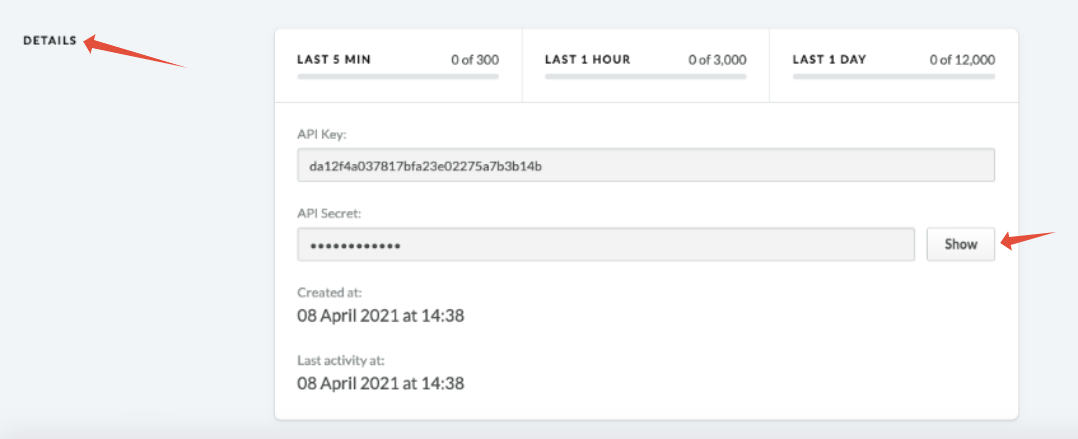
You can now copy and paste the API Key and API Secret into the according fields of the SyncSpider integration setup window.
Additional Resources
Learn more about SyncSpider's capabilities and how to optimize your Lightspeed integration with these additional resources:
Lightspeed is just one of the tools we support!
To check the list of the tools and features we support please click here!
If you don't see your favorite tool on our list, please take the time and send us the request here to create an integration for you or UP-vote if it's already on the list
We develop integrations based on the requests and up-votes
We hope that this covers everything. If you have any further questions or need additional clarification please reach out to us via [email protected] or our chat widget!
Updated on: 22/09/2026
Thank you!