How to Integrate BigCommerce - Help Center - SyncSpider
TABLE OF CONTENTS
- Description
- Entities
- Steps to Integrate BigCommerce
- Step 1. Select the BigCommerce Integration
- Step 2. Name the Integration
- Step 3. Entering BigCommerce Credentials
- Step 4. Obtaining the Credentials
- Additional Resources
Description
BigCommerce is a leading B2B eCommerce platform designed for agility, security, and scalability. It automates updates, hosting, and security, allowing businesses to focus on growth. With an open API, it seamlessly integrates with ERP, PIM, and CRM systems.
By integrating BigCommerce with SyncSpider, you can automate data sync, streamline multi-channel sales, and connect with 400+ platforms—reducing manual work and enhancing efficiency across your operations.
Entities
Source | Target |
|---|---|
Product | Product |
Order | Order |
Customer | Customer |
Coupon | Coupon |
Steps to Integrate BigCommerce
Step 1. Select the BigCommerce Integration
Click on the ‘Integrations’ tab in SyncSpider. Click Connect new app and search for the BigCommerce module in the pop up window. You can also do this while creating a new task.

Step 2. Name the Integration
Enter a name for your integration.
Click Next to proceed.

NOTE: You can create multiple integrations with the same app or tool. Adding clear and specific descriptions to each integration will help you stay organized and easily manage your workflow.
Step 3. Entering BigCommerce Credentials
You will be prompted to enter your BigCommerce Client ID, Access Token and Sore Hash.

Step 4. Obtaining the Credentials
To obtain Client ID, Access Token, and Store Hash, head over to your BigCommerce Dashboard, and click on "Settings" found on the left-hand side, as shown in the picture below:

Next, scroll down to "API Accounts", and then click on "Create API Account" as shown in the picture below:


- Token Type:
Choose V2/V3 API token from the drop-down menu, as shown in the picture below:
- Name:
Chose the Name for your API account as desired and set the OAuth Scopes per your needs accordingly.
- Store Hash:
Store Hash is located within the API Path, after /stores/, and before /v3/.
E.G. if the API Path was https://api.bigcommerce.com/stores/abcd1234/v3/, the Store Hash would be "abcd1234".
Your API Path can be viewed while creating a new API account inside the provided API path.

Once the configuration is done, click the "Save" button and you will be provided with the Client ID and Access Token.

Step 5: Insert your Credentials into SyncSpider
Simply Copy your Client ID and Access Token, and paste them into the Integration configuration window inside the SyncSpider App and click Save.
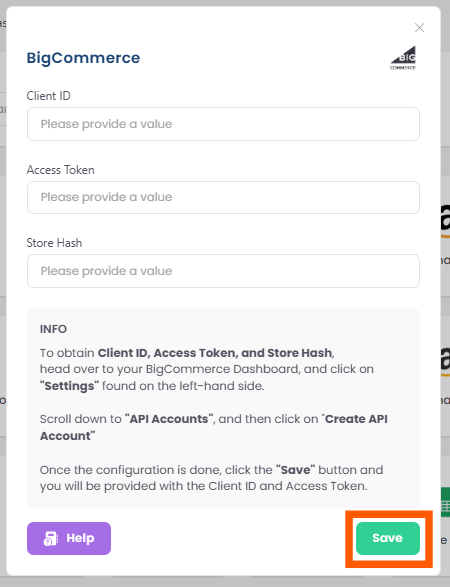
Congratulations! BigCommerce is now successfully integrated.
Additional Resources
Learn more about SyncSpider's capabilities and how to optimize your BigCommerce integration with these additional resources:
- What are Source and Target Integrations?
- How to create a Task?
- Create a custom Collection field with SyncSpider
BigCommerce is just one of the tools we support!
To check the list of the tools and features we support please click here!
If you don't see your favorite tool on our list, please take the time and send us the request here to create an integration for you or UP-vote if it's already on the list
We develop integrations based on the requests and up-votes
We hope that this covers everything. If you have any further questions or need additional clarification please reach out to us via [email protected] or our chat widget!
Updated on: 22/09/2026
Thank you!